How to automate lead emails with Google Workspace Studio
A Workspace Studio flow that drafts a reply to every website lead from your own templates and prices. You still read and send every one.
A quote request that sits in the inbox until the evening is a quote request someone else answered first. The trouble is that the person who answers the inbox is also answering the phone, booking the crews and doing the invoices.
The fix is not a chatbot, and it is not an auto-reply that says "thanks, we'll be in touch". It is a proper first draft, written from the business's own templates and prices, waiting in the thread when the office manager opens it. They read it, fix anything that needs fixing, and send it. Most of the typing is already done.
This is how I built that for Joey's two businesses, Lightning Moving and Lightning Rubbish Removal in Kamloops, British Columbia, using only Google Workspace: a Google Doc, a Gemini Gem and a Workspace Studio flow. No extra software, and nothing that sends on its own. The case study has the short version.
What you end up with
A draft on every lead
Each quote request from the website form gets a reply saved as a Gmail draft, in the same thread as the lead.
Your prices, word for word
The draft only uses prices from your template Doc, copied exactly. Change a rate in the Doc and the next draft uses the new one.
Nothing sends by itself
A person reads every draft and presses send. The flow can only save drafts.
It asks, it does not promise
The draft asks for the one or two details that change the price most. It never confirms a date or says a crew is free. That stays with whoever checks the calendar.
What you need before you start
- A Google Workspace Business or Enterprise plan with a verified domain. Google lists Workspace Studio on every Business edition, Starter included. Not on Workspace yet? Start a 14-day trial through our referral link (Wired Builder may earn a referral bonus from Google), then email us for a 10% promo code.
- A website form that emails your inbox from a fixed address, such as quotes@ on your domain. A fixed sender is what lets the flow tell a lead apart from everything else.
- Your current replies. Whatever you already send by hand is the best starting template.
- Time to clean up those templates. That is most of the work.
What Workspace Studio flows are
Workspace Studio is Google's tool for building automations inside Workspace without code. Each automation is a flow with two parts. The starter is what launches it: an event, such as an email arriving, a schedule, or a manual trigger. Steps are the tasks it performs next, like drafting a reply or sending you a Chat message.
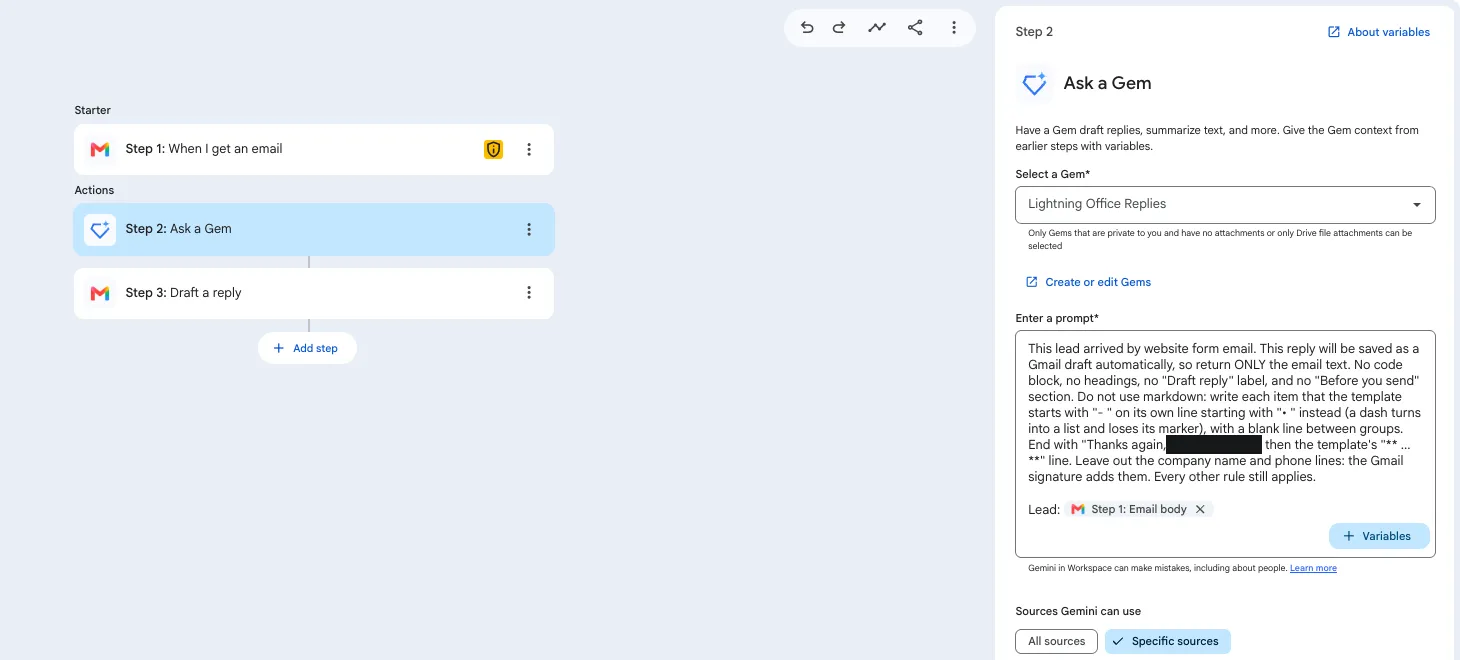
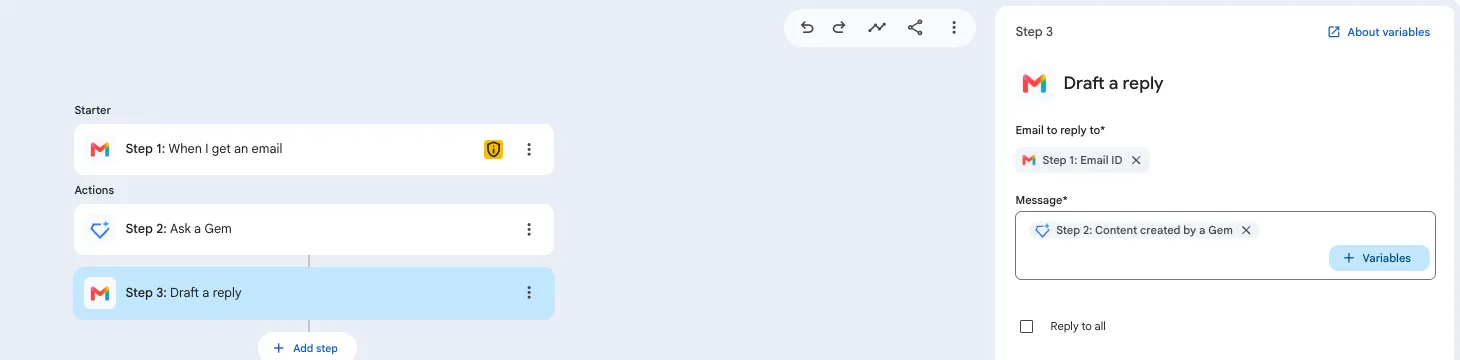
A step can hand its result to a later step. That is the whole trick here: one step asks Gemini to write the reply, and the next step saves what Gemini wrote as a Gmail draft.
- Website Quote form Emails the inbox from quotes@
- Starter When I get an email Only from that address
- Step 2 Ask a Gem Reads the template Doc
- Step 3 Draft a reply Saved in the lead’s thread
- Person Office reviews Edits if needed, presses send
The steps
-
Write your templates in a Google Doc
Start from the replies you already send. Paste them into one Google Doc per business line, then tidy them into the same shape: an opener, one body per job type, one question line per job, and a closing.
Every price appears in exactly one place. If two of your old replies disagree on a price, do not pick one. Put a marker like [confirm] where the price would go. The draft carries the marker through, and the person sending it fills it in. That beats the tool quietly choosing the wrong number.
Keep it a Google Doc, not a PDF. The office can update a rate in the Doc without touching the Gem or the flow.
-
Make a Gem with rules it cannot break
A Gem is a saved Gemini assistant. It has standing instructions and a set of files it reads before answering. Make one at gemini.google.com under Gems, signed in with the Workspace account that owns the inbox, and attach your template Docs as its knowledge.
The instructions do most of the work. The rules that mattered are listed below this step. Test the Gem in a plain Gemini chat first: paste a made-up lead and check the draft against the template line by line before any automation touches it.
-
Build the Studio flow
Open Workspace Studio at studio.workspace.google.com and create a flow with three steps. The starter is "When I get an email", limited to your form’s sender address. Step two is "Ask a Gem": pick your Gem, limit its sources to that business’s template Doc, and give it a short prompt followed by the email body. Step three is "Draft a reply" to that email, using what the Gem wrote.
The prompt tells the Gem the reply goes straight into a Gmail draft, so it should return only the email text: no headings, no notes, no formatting.
Run two business lines? Build two flows, one per sender address and one per template Doc. A moving lead should never be able to pull a junk removal price.
-
Test on a fake lead before a real one
Send a test inquiry through your own website form with TEST in it, then use the flow’s Test run. Open the saved draft and check three things: every price is exactly what the template says, it asks for no more than two details, and it does not promise a date.
On this build, a test bin rental inquiry produced a draft that used the right template, with every price exact, saved in the test thread.
A sample template
Made-up prices, not a real client's. This is the shape each job type takes in the Doc.
## Bin rental

- Bin hauling: $000 per bin, includes delivery, removal and landfill time
- Bin size: [confirm]
- Bin rental: $00/day

Question: How does this look so far?
The Gem's rules
| Rule | Why |
|---|---|
| Prices only from the templates, copied exactly | No totals, no hour estimates, no guessing a price the templates do not list. |
| Never confirm a date or availability | Ban the phrases outright: "we’re available", "we can do", "we’ll be there". |
| Leave every [confirm] marker in | Never fill one in. The person sending the reply does that. |
| Ask for one or two missing details | Pick the ones that change the price most, and never ask for something the customer already gave. |
| Never invent facts | Nothing about places, buildings or anything else the templates do not say. |
| Keep the business’s voice | Greeting, opener, the template body word for word, the question, the closing. |
What went wrong on the first build
| What you see | What it means | What to do |
|---|---|---|
| The dashes in your price list disappear | Studio read lines starting with "- " as a markdown list and dropped the markers | Tell the Gem in the prompt to start those lines with "• " instead |
| The sign-off appears twice | The template closing and the inbox’s Gmail signature both add the business name and phone | Tell the Gem to leave the name and phone lines to the signature |
| The flow fails before any step runs | On this build the cause was never isolated, because two things were changed at once | Change one thing at a time and run the test again, so you know what fixed it |
Starter and step names come from Google's Get started with Workspace Studio help article. Plan availability is from Google's Business editions comparison, checked 29 September 2026. Google moves its menus now and then.
Want this set up for your business?
I build it in your own Google account, with your templates, and you own all of it. I'm a Canadian studio working with US businesses, and here is why that costs you less.
Common questions
- Does Google Workspace Studio send emails on its own?
- Not this flow. Its last step saves a draft reply in the lead’s thread. Someone reads it and presses send.
- Which Google Workspace plans include Workspace Studio?
- Google lists Workspace Studio on Business Starter, Standard and Plus, and on Enterprise Standard and Plus, with a verified domain. Google says usage limits are promotional and may change, so check your own admin console if the Studio icon is missing.
- What if the customer asks something the templates do not cover?
- The draft sticks to what the templates say and does not guess. The person sending it adds the answer.
- Can it quote a total price?
- No, on purpose. It quotes the rates in your templates exactly. Totals depend on things only you can judge, like how long the job takes.
- What happens when my prices change?
- Edit the Google Doc. The next draft uses the new price. The Gem and the flow do not change.
- Does it work for text messages or phone leads?
- The Studio flow only watches email. The same Gem can draft a short text reply if you paste a text or your call notes into it by hand.
- Is the lead sent to any other company?
- Not in this flow. It uses only Gmail, Drive and Gemini in the business’s own Workspace account, with no third party integration step.